Understanding Calendar Conflicts
What are Calendar Conflicts?
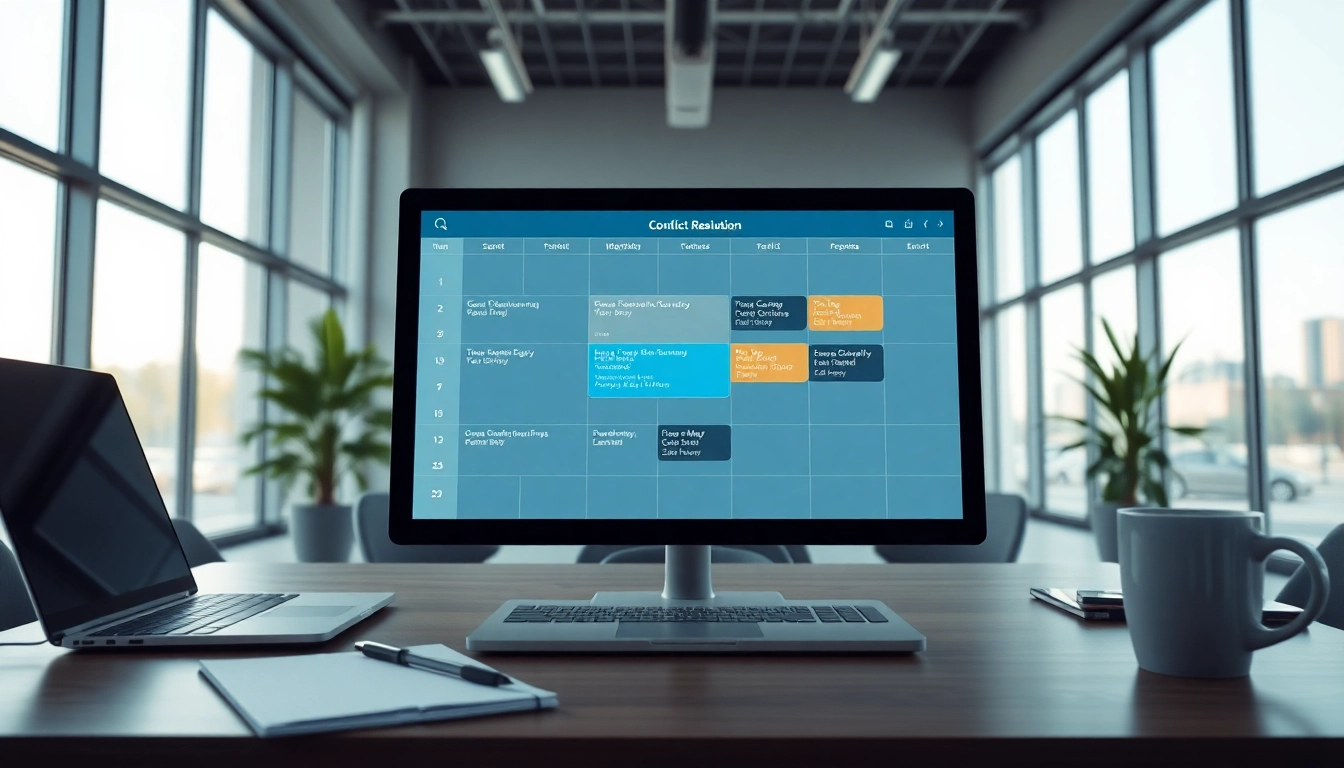
Calendar conflicts occur when two or more scheduled events overlap in time, preventing an individual from attending all events. This situation can emerge from multiple commitments, misunderstandings in scheduling, or inadequate coordination among team members. For example, if a business meeting is set for 10 AM, but at the same time, there is a doctor's appointment scheduled, this creates a calendar conflict that must be resolved.
Common Causes of Calendar Conflicts
Various factors contribute to calendar conflicts, including:
- Double Booking: Scheduling two or more meetings for the same time slot.
- Lack of Real-Time Updates: Failure to synchronize calendars across platforms can lead to missed or overlapping appointments.
- Insufficient Buffer Time: Not allowing adequate time between meetings often leads to rushed transitions.
- Miscommunication: Failure to communicate availability clearly among team members can create misunderstandings.
- Configuration Errors: Mistakes in calendar settings, such as time zone misconfigurations, often result in scheduling mishaps.
Impact of Scheduling Conflicts
The repercussions of scheduling conflicts can be significant. They can strain relationships, decrease productivity, and cause unnecessary stress among team members. Moreover, frequent conflicts can lead to frustration and diminish engagement, as team members may feel overwhelmed by managing competing priorities. Addressing calendar conflicts proactively is, therefore, essential to maintaining a harmonious and efficient workflow.
Why Automatic Conflict Resolution is Essential
Benefits of Fixing Calendar Conflicts Automatically
Utilizing automatic conflict resolution tools brings multiple benefits:
- Time Saving: Automating the process of identifying and resolving conflicts allows individuals to focus on more critical tasks instead of resolving scheduling issues.
- Enhanced Productivity: When calendar conflicts are managed promptly, there’s less downtime, leading to improved overall productivity.
- Improved Coordination: Automatic systems ensure that everyone has access to the most current information regarding schedules, promoting better teamwork.
How Automatic Features Improve Productivity
Automatic features in modern calendar applications help streamline the planning process. For instance, an automatic synchronization feature connects various calendars, ensuring updates reflect in real-time across devices. Such functionalities can alert users to conflicts early, preventing overlap before it occurs. By having reminders and alerts in place, productivity increases, as individuals can plan their day without checking multiple calendars manually.
Reducing Stress with Automated Solutions
Stress often arises from overlapping commitments and the anxiety of missed appointments. By implementing automated conflict resolution, such as auto-declining functionality—where irrelevant meetings are automatically declined when they overlap with existing plans—individuals can significantly relieve this pressure. Knowing that conflicts are being managed efficiently allows people to focus on their responsibilities without the added stress of conflicting appointments.
How to Fix Calendar Conflicts Automatically: Step-by-Step Guide
Setting Up Your Calendar Preferences
To establish an effective automatic conflict resolution system, start by setting your calendar preferences:
- Access your calendar settings.
- Enable features like fix calendar conflicts automatically, which allows your calendar to decline invitations that overlap with existing events.
- Customize your notification settings to ensure you are alerted to potential conflicts in a timely manner.
- Review and update your availability settings to reflect your current schedule accurately.
Utilizing Integration Tools
Integration tools can help synchronize calendars across different platforms. Start by connecting your calendar with collaboration tools or email services that your team uses. Popular integration platforms can sync Google Calendar with Outlook or other calendar applications, ensuring real-time updates. This reduces the risk of conflicts emerging due to discrepancies caused by manual updates.
Adjusting Settings for Optimal Performance
After integrating your calendars, adjust the settings to optimize performance:
- Set reminders at specific intervals to preemptively identify conflicts.
- Employ time-blocking features to allocate specific hours for focused work, preventing spontaneous distractions or overlaps.
- Maintain clear boundaries by communicating your schedule with colleagues, helping others respect your availability.
Best Practices for Managing Calendar Conflicts
Implementing Time Blocking
Time blocking involves scheduling specific chunks of time for tasks or meetings—this can significantly reduce the chance of conflicts. When pre-setting these blocks, consider your natural productivity patterns, and allocate your time accordingly. By designating hours for specific tasks, you minimize spontaneous engagements that might lead to overlaps.
Sharing Calendar Access
Transparency among team members is crucial for avoiding conflicts. By sharing calendar access with teammates, individuals can easily see each other's availability. Whether through company-wide calendars or specific team calendars, this practice fosters understanding and helps prevent scheduling issues. Ensure all relevant parties have access to necessary calendars to enhance collaboration and streamline scheduling.
Keeping Clear Communication
Always maintain open lines of communication regarding availability and scheduling preferences. Utilize tools that support sharing availability directly through calendar invites and encourage team members to provide updates on any changes. Regular team meetings discussing upcoming commitments can further enhance visibility, allowing everyone to be on the same page.
Frequently Asked Questions
How does automatic decline functionality work?
Automatic decline functionality checks for overlapping events. If a new invite conflicts with an existing meeting, it is declined automatically, reducing scheduling errors.
Can I adjust preferences for auto-declines?
Most systems offer customizable settings for auto-declines, allowing users to choose which events trigger this automatic response.
Is auto-syncing necessary for resolving conflicts?
Auto-syncing is vital as it ensures all calendar updates occur in real-time, enabling proactive resolutions to scheduling conflicts.
What tools can help manage calendar conflicts?
Calendar integrations, such as those synchronizing Google Calendar with other platforms, provide automated alerts regarding potential overlaps and improve conflict management.
Can I manually fix calendar conflicts as well?
Yes, users can manually resolve conflicts by reviewing their calendar and adjusting appointments as needed to eliminate overlaps.